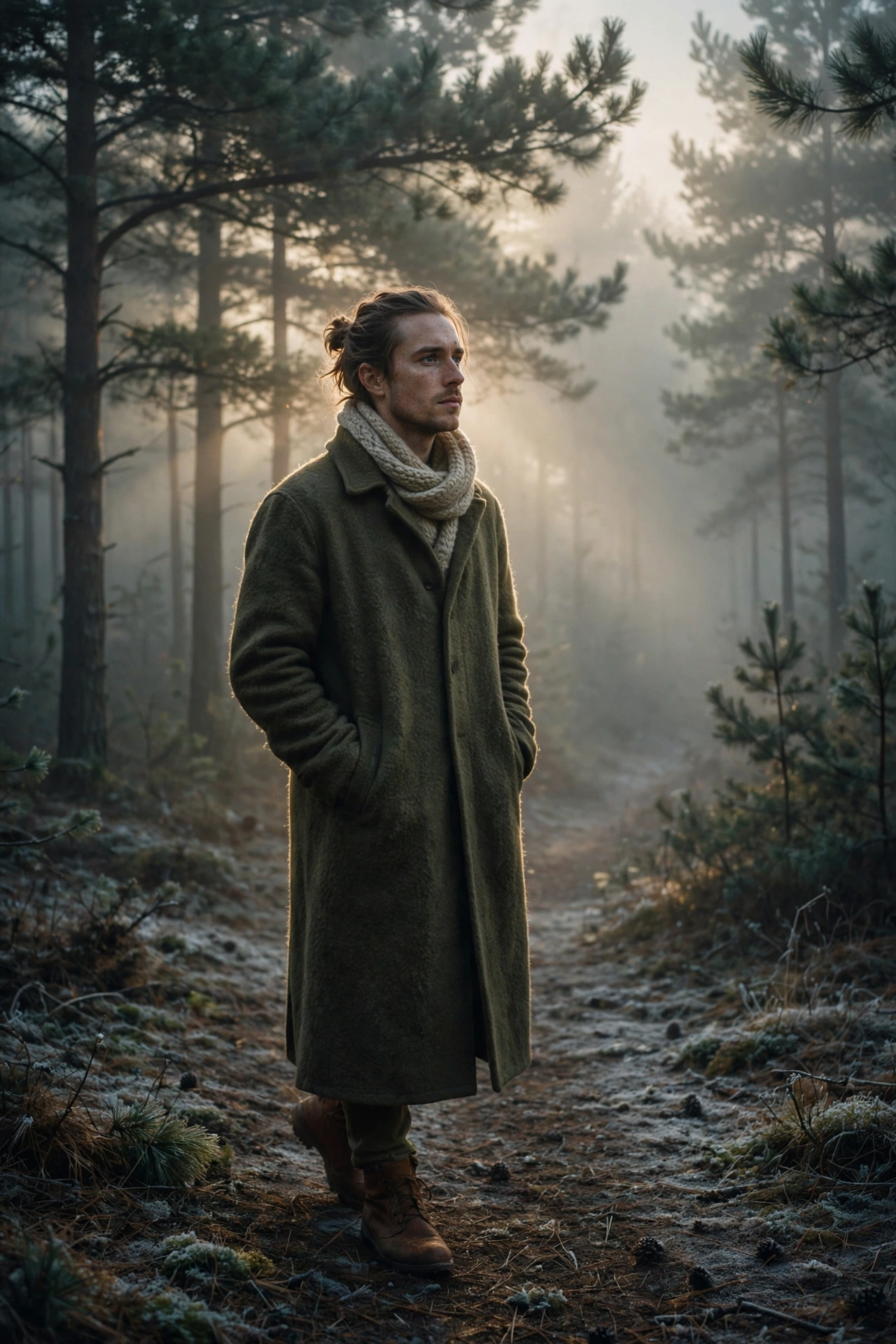
Misty Pine Forest – Moody Winter Portrait
Some photos just feel quiet. Fog between tall pines, cold blue light, a figure walking down a forest path — this is that kind of image. This prompt turns your photo into a moody winter portrait that looks like a still from a travel film. It is perfect if you want a profile picture with depth, a reels cover that stands out, or a wallpaper that calms you down every time you unlock your phone. The style suits anyone who likes the cinematic, understated look — no bright colours shouting for attention, just atmosphere. And because the prompt is built around fog and soft light, it is very forgiving: even a basic selfie can turn into something striking. Craving warmth instead? The rooftop golden sunset chai photo is the cosy opposite of this one.
🖼️ Example Result
📋 Copy the Prompt
Use the uploaded photo as the only identity reference. Keep the exact face, facial structure, skin tone and hairstyle unchanged.

Create an ultra-realistic cinematic vertical portrait (9:16) of the person walking slowly along a narrow path in a dense misty pine forest in early winter morning. They wear a long olive-green wool coat, a chunky knit scarf and brown leather boots, hands in coat pockets, looking slightly to the side with a thoughtful expression.

Environment: tall dark pine trees fading into thick fog, a light layer of frost on the ground, fallen pine needles, soft rays of pale sunlight cutting through the mist.

Lighting: soft diffused cold light, gentle backlight creating a subtle glow around the silhouette, no harsh shadows.

Camera: 35mm lens, f/2.2, subject in the lower third, lots of atmospheric depth, slight low angle.

Style: moody cinematic colour grade with desaturated greens and cool blues, soft film grain, natural skin texture, high detail. No text, no watermark.
🛠️ How to Use This Prompt
Using this prompt takes about two minutes. Copy it from the box above, open your AI app, upload your photo, and send. Here is the detailed walkthrough for both apps.
On ChatGPT:
- Open chat.openai.com or the ChatGPT app and sign in.
- Tap the + or paperclip button and upload a clear, front-facing photo of yourself. A calm, neutral expression works best for this moody style — no sunglasses, no heavy filters.
- Paste the copied prompt into the message box and hit send.
- Wait for the image to generate, then tap it to download the full-size 9:16 portrait.
On Google Gemini:
- Go to gemini.google.com or open the Gemini app and sign in with your Google account.
- Tap the + button, upload your photo, paste the prompt, and send.
- Gemini is fast with portraits like this, though ChatGPT usually nails the cinematic colour grade a little better.
Photo tips: Your input photo matters more than anything else. Use a sharp, front-facing photo taken in good light, with your face clearly visible. A neutral or thoughtful expression matches the mood of this prompt far better than a big smile.
If the face changes or the result looks off: Try a different input photo first — a straight-on, well-lit selfie fixes most face issues. If the image comes out too dark (a common complaint with moody prompts), add “bright, airy and softly exposed” to the style line and regenerate. Weird tree shapes or fog blobs? Just regenerate; each run is a fresh roll of the dice.
How to iterate: Change one line at a time. Add “light snowfall”, regenerate, and compare. Then try swapping the coat colour to camel beige. One change per generation shows you exactly what each line controls, and within a few tries you will have the portrait dialled in.
💡 Tips for Best Results
- A photo with a neutral expression works best for this moody style.
- Add “light snowfall” for a snowy version.
- Change the coat colour to “camel beige” for a warmer look.
- If the fog looks too thick, add “lighter mist, more visible trees” to the environment line.
- For a reels cover, the 9:16 framing already leaves the top third empty — perfect for adding text later.
- Avoid smiling selfies as input; a calm expression gives a more natural, cinematic result.
✨ Why This Prompt Works
The 35mm lens and the “subject in the lower third” instruction are what make this look cinematic instead of like a regular selfie. They pull the camera back and let the forest do the talking. Desaturated greens and cool blues flatten the colour palette, which our eyes read as calm and premium — the same grade used in moody travel films. The fog is doing quiet work too: it hides background detail, so the AI has less to get wrong and the final image stays clean and believable.
❓ FAQs
Can I make it an autumn version?
Yes — replace “early winter” with “autumn” and add “orange and yellow leaves on the ground”.
The photo is too dark. How do I fix it?
Add “bright, airy and softly exposed” to the style line.
Will it work with a smiling selfie?
It works, but a neutral or thoughtful expression gives a more natural result for this moody style.
Can I use this as a phone wallpaper?
Yes — the 9:16 ratio is exactly phone wallpaper size. Download the result and set it directly.
The trees look fake. Any fix?
Add “photorealistic pine trees, detailed bark texture” to the environment line and regenerate. For a warmer festive mood instead, try the Eid night lanterns portrait.
Want more? 👉 Explore the latest trending AI prompts on the Faymasin homepage.